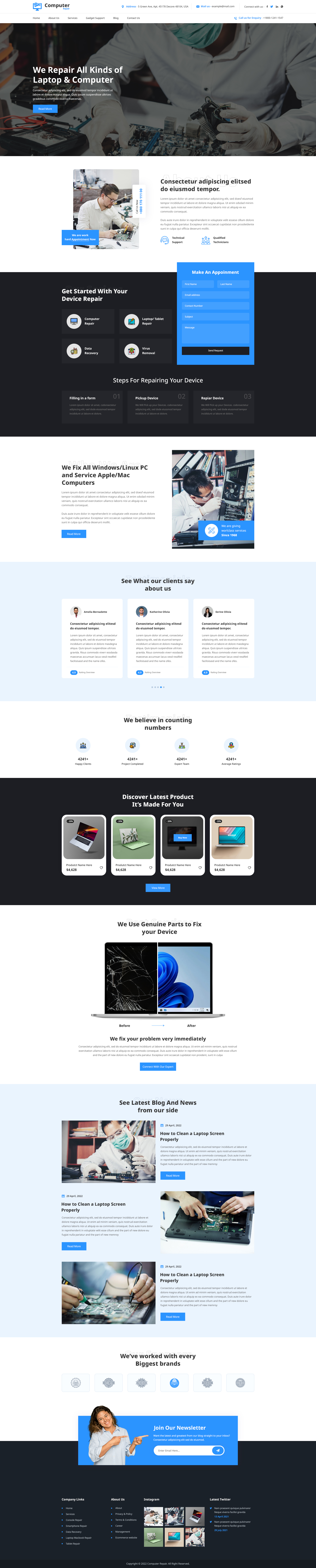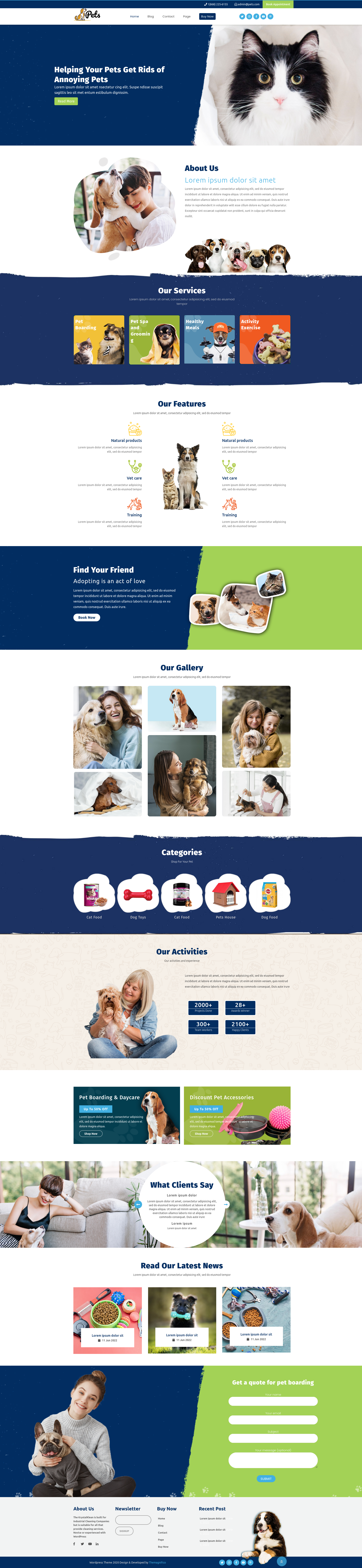


Creating a strong first impression online starts with one essential step: create home page in WordPress the right way. Your homepage is often the first place visitors land, and within seconds, they decide whether to stay or leave. If the layout feels confusing or the message is unclear, even good content can be overlooked. That’s why building a clear, well-structured homepage is not optional, it’s foundational.
For many beginners, WordPress can feel flexible to the point of being overwhelming. You may wonder where to start, which settings matter, or how to make the homepage look professional without touching code. The good news is that WordPress is designed to guide you step by step. With the right approach, creating a homepage becomes less of a technical task and more of a creative process.
In this guide, you’ll learn how to create home page in WordPress using simple, practical methods. Each step focuses on clarity, usability, and purpose. By the end, you’ll know how to shape a homepage that welcomes visitors, communicates value clearly, and sets the tone for your entire website.
What Does It Mean to create home page in WordPress?
When you create home page in WordPress, you are defining the main entry point of your website. This is the page visitors see first, and it acts like the front door of your online space. Unlike regular pages or blog posts, the homepage has a clear role: introduce your brand, guide users, and highlight what matters most.
WordPress allows your homepage to be fully flexible. It can be a static page with custom sections, a dynamic layout built using page builders, or even a content-focused setup if your site revolves around publishing and how to create a blog page on WordPress. This freedom makes it easy to match the homepage design with your site’s purpose.
At its core, creating a homepage is about clarity and flow. It brings design, messaging, and navigation together in one place. Using Responsive WordPress Themes ensures your homepage looks professional across all devices. When structured properly, it helps visitors understand your website quickly and encourages them to explore deeper without confusion.
Why a Well-Designed WordPress Home Page Matters.
A strong homepage plays a key role in how visitors perceive your website. When you create home page in WordPress thoughtfully, it builds trust within seconds. Visitors decide very quickly whether to stay or leave, and your homepage often makes that decision for them.
First, a clear homepage improves navigation. With the help of WordPress web page templates, it becomes easier to structure content in a clean and organized way. Users quickly understand what your website offers and where to go next, which reduces confusion and improves overall browsing experience.
Additionally, a well-structured homepage supports better engagement and conversions. It highlights your value clearly, guides attention with visual flow, and encourages actions like reading content or contacting you. In short, your homepage becomes the foundation that supports your website’s growth and long-term success.
Key Tools Used to Create Home Page in WordPress
Before you create home page in WordPress, it is important to understand the tools that shape its structure and design. WordPress offers both built-in features and visual tools that help users build pages without technical complexity. Each tool serves a different purpose, from content layout to branding control and visual customization.
Some tools focus on writing and arranging content, while others handle design, layout, and appearance. When these tools are combined thoughtfully, they deliver better results. You gain flexibility, save time, and create a homepage that looks professional, works smoothly, and meets your website goals. Additionally, knowing how to create a plugin for WordPress can extend your homepage’s functionality and tailor features to your specific needs.
Tool 1: WordPress Block Editor (Gutenberg)

The WordPress Block Editor, also known as Gutenberg, is the default content editor used to create and manage homepage sections. It works by dividing content into blocks such as text, images, buttons, and columns. This block-based approach makes page building more structured and flexible. Gutenberg allows you to visually arrange content while maintaining clean formatting. It is lightweight, fast, and tightly integrated with WordPress, making it ideal for creating modern homepages without extra plugins.
Key Features:
- Block-based content editing
- Pre-designed blocks for text, images, and layouts
- Reusable blocks for consistency
Best Use Cases:
Simple to medium-complexity homepages that focus on clarity, speed, and clean content structure.
Tool 2: WordPress Customizer

The WordPress Customizer controls the overall look and feel of your homepage. It allows you to adjust branding elements such as colors, fonts, headers, menus, and homepage settings in real time. Changes can be previewed instantly before publishing, which reduces errors and saves time. When you create home page in WordPress, the Customizer ensures your design stays consistent across the entire site while aligning with your brand identity.
Key Features:
- Live preview of design changes
- Control over colors, typography, and layout
- Header, footer, and menu customization
Layout and Branding Control:
Perfect for maintaining visual consistency and applying brand styles across your homepage.
Tool 3: Page Templates in WordPress

Page templates provide pre-designed layouts that define how your homepage content is displayed. Instead of starting from scratch, templates offer ready-made structures with sections already arranged. This is especially useful for beginners or anyone who wants faster results. Templates help keep spacing, alignment, and visual flow balanced. They also reduce the chances of layout mistakes while ensuring your homepage looks organized and professional.
Key Features:
- Pre-built layouts for faster page creation
- Consistent structure and spacing
- Compatible with most editors and themes
When Templates Save Time:
Ideal when you want a polished homepage quickly without manual layout adjustments
Tool 4. Page Builder Plugins

Page Builder Plugins in WordPress, such as Elementor and Divi Builder, let you design your homepage visually without touching a single line of code. They work like a digital canvas, allowing you to drag, drop, and arrange content elements exactly how you want. With pre-built sections, customizable layouts, and real-time editing, these plugins make creating a professional-looking homepage fast and intuitive. They are ideal for users who want full creative control while ensuring the page remains responsive and easy to navigate.
Key Features:
- Drag-and-drop visual editing
- Pre-built sections and design elements
- Responsive layout controls
Visual Design Without Coding:
Best for users who want full creative control over homepage design without writing code.
Best Practices for Creating a Home Page in WordPress
A well-designed homepage not only attracts visitors but also guides them through your website effortlessly. Following best practices ensures your page is engaging, easy to navigate, and optimized for conversions.
-
Keep It Clean and Focused: Highlight key content and avoid clutter. Clear sections make it easier for users to find important information.
-
Prioritize Mobile Responsiveness: Ensure your homepage looks great on all devices, from smartphones to desktops.
-
Use Consistent Branding: Maintain uniform fonts, colors, and visual elements to strengthen brand identity.
-
Optimize Load Speed: Fast-loading pages improve user experience and reduce bounce rates.
-
Include Clear CTAs (Call-to-Actions): Guide visitors to the next step, whether it’s reading a blog, signing up, or exploring services.
- Integrate Analytics: Tools like Google Analytics help track visitor behavior and improve your homepage over time.
Follow best practices while you create a home page in WordPress because your homepage becomes not just a welcome page but a powerful tool to engage visitors and support your website goals, especially when built using Free WordPress Themes that are well-designed and performance-optimized.
Comparison Table
|
Tool |
Ease of Use |
Key Features |
Best For |
|
WordPress Block Editor (Gutenberg) |
Easy |
Drag-and-drop blocks, reusable blocks, media embedding, responsive layout |
Users building structured content without coding |
|
WordPress Customizer |
Very Easy |
Live preview, theme options, site identity, layout & color adjustments |
Beginners customizing theme appearance |
|
Page Templates in WordPress |
Medium |
Pre-designed layouts, consistent structure, ready-to-use sections, device optimization |
Users who want faster homepage setup |
|
Page Builder Plugins |
Medium |
Visual drag-and-drop design, advanced widgets, flexible sections, responsive controls |
Users who want full creative freedom without coding |
Conclusion
Creating a home page in WordPress doesn’t have to be overwhelming. By using the right mix of tools like WordPress Block Editor, Customizer, Page Templates, and Page Builder Plugins, you can design a professional, responsive, and engaging homepage without coding. Each tool serves a unique purpose: some help with structure, others with visual design, and some save time with ready-made templates. Combining them ensures your homepage looks polished, guides visitors effectively, and represents your brand consistently.
Following best practices, avoiding common mistakes, and leveraging these tools allows you to build a homepage that is user-friendly, visually appealing, and optimized for any device. With careful planning and these resources, anyone can create a homepage in WordPress using a WP theme bundle to capture attention, engage visitors, and enhance the overall user experience.
Frequently Asked Questions (FAQs)
1. How do I create home page in WordPress?
You can create a homepage by using the WordPress Block Editor or Page Builder Plugins, customizing a template, and adjusting it with the Customizer to match your brand.
2. What is the best tool for beginners to create a home page?
The WordPress Customizer and Block Editor (Gutenberg) are beginner-friendly and allow live edits without coding.
3. Can I use page templates for a homepage?
Yes, page templates save time by providing pre-designed layouts that you can quickly adjust with your content and branding.
4. Do I need coding skills to create a professional homepage?
No, Page Builder Plugins allow visual drag-and-drop editing, letting you design a fully functional homepage without any coding.
5. How do I make my WordPress homepage mobile-friendly?
Ensure you use responsive WordPress themes, check layouts in the Customizer, and preview on multiple devices to maintain proper alignment and readability.